Sending Bulk Messages
Bulk messaging lets you send a single WhatsApp template message to many contacts at once. All bulk WhatsApp messages must use an approved template.
Starting a Bulk WhatsApp Send
From the Contacts List
- Go to Contacts in the left sidebar.
- Select the contacts you want to message using the checkboxes.
- Click Bulk Actions in the toolbar.
- Select Send Bulk WhatsApp.
This starts the same underlying Campaign flow used from Conversations → Campaigns, just entered with your selected contacts pre-filled as the audience.
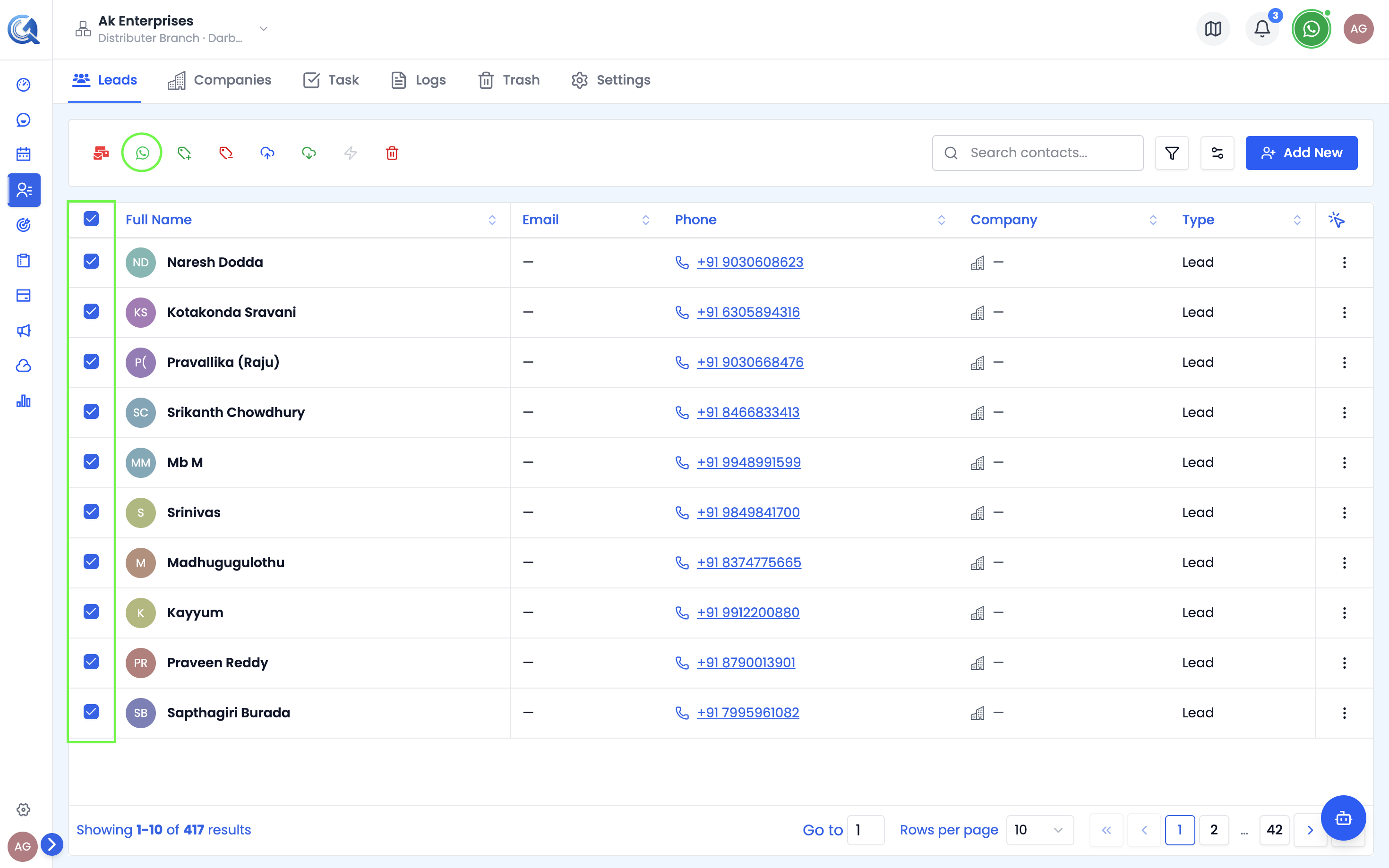 Select contacts and use Bulk Actions to send a bulk WhatsApp message.
The Bulk WhatsApp Form
The form has the following fields:
| Field | Description |
|---|---|
| Campaign Name | A unique internal label for this send (e.g., "April Promotion") |
| Template | Select an approved WhatsApp template |
| Variables | Map template placeholders to contact fields |
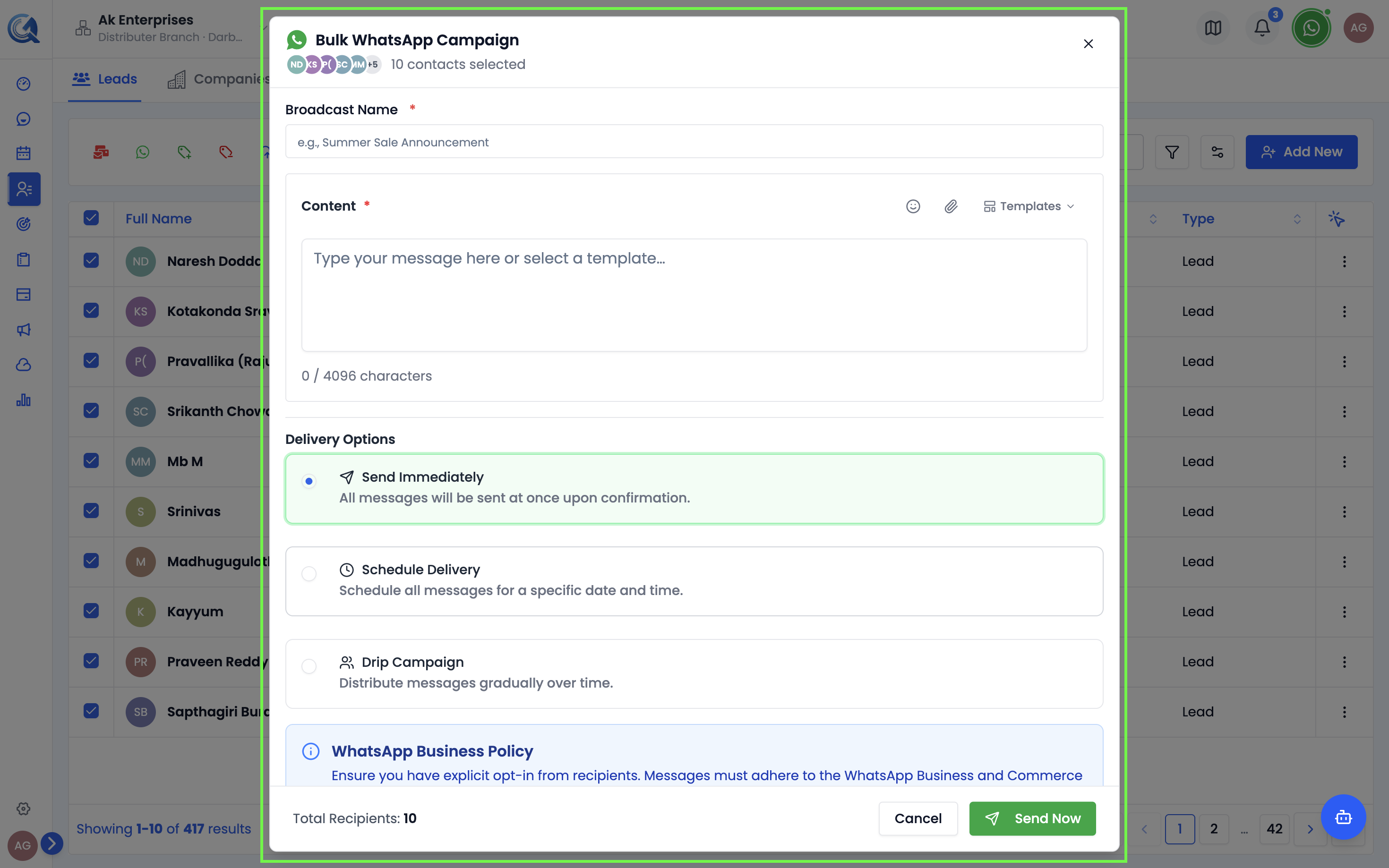 Fill in the action name and select your approved template.
Selecting a Template
- Click Select Template.
- Browse or search for an approved template.
- Select it — the template preview renders on screen.
If no templates appear in the selector, none of your templates have been approved yet. Go to Conversations → Templates → WhatsApp to check the status and resubmit any that show Action Required.
Only Approved templates are available for bulk sends.
Mapping Template Variables
If the template has variables ({{1}}, {{2}}), a variable mapping section appears. For each variable:
- Select a contact field (e.g., First Name, Company), or
- Enter a custom static value that applies to all contacts.
Contact field values are resolved individually per contact at send time.
If a contact's record is missing the field you mapped (e.g., First Name is blank), the variable will be sent empty unless you also provide a static fallback value in the custom value field.
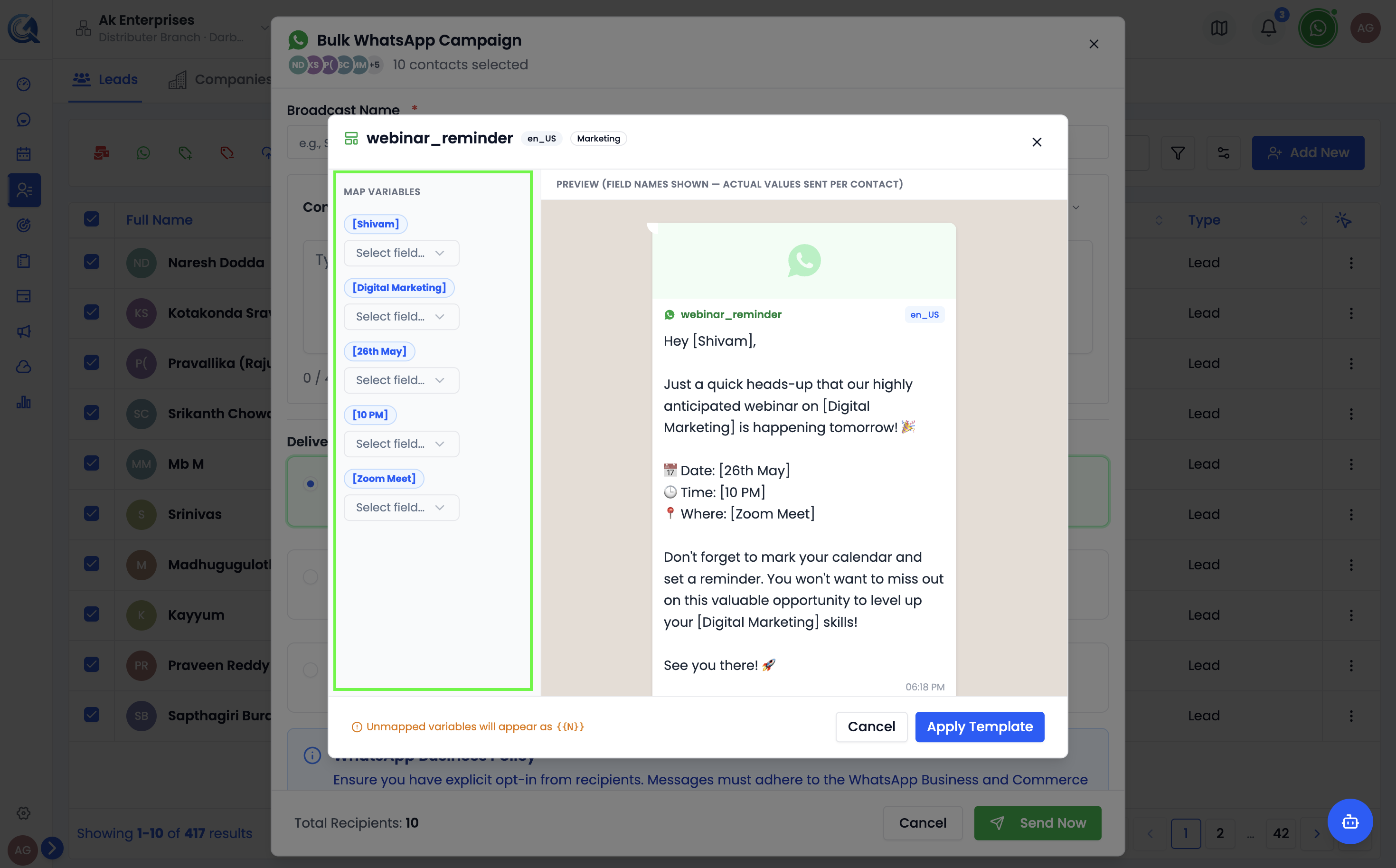 Map variables to contact fields or set a fixed value for all recipients.
Sending Options
Choose when to send:
| Option | Description |
|---|---|
| At Once | Send to all selected contacts immediately |
| Scheduled | Send at a specific future date and time |