WhatsApp Overview
The WhatsApp channel in QuantixOne CRM lets your team communicate with contacts through WhatsApp Business — the world's most widely used messaging platform. Send individual messages, use approved templates, run bulk campaigns, and receive inbound replies, all from inside the Conversations module.
What You Can Do with WhatsApp
| Capability | Description |
|---|---|
| Send Messages | Compose messages using approved WhatsApp templates directly from a contact's conversation. |
| Templates | Create, submit for approval, and manage WhatsApp message templates with headers, buttons, and variables. |
| Bulk Messaging | Send one message to many contacts at once, immediately or scheduled for later. |
| Inbound Messages | Receive replies from contacts and respond in real time within the conversation timeline. |
| Account Health | Monitor your connection status and message quality rating. |
How WhatsApp Fits into QuantixOne
WhatsApp works within the Conversations module. Every message you send or receive appears in the contact's conversation thread alongside Email and SMS messages, giving you a complete communication history in one place.
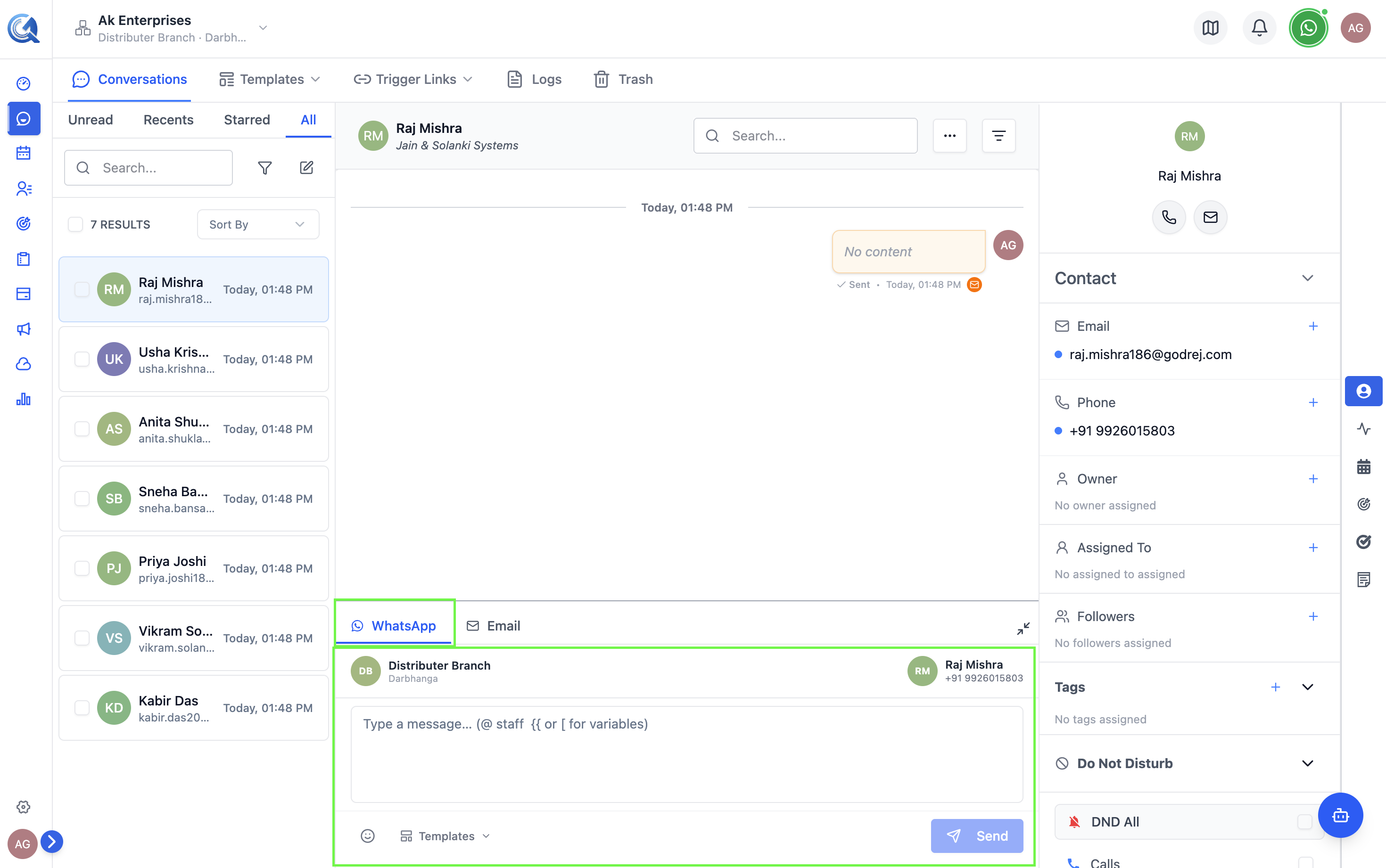 WhatsApp messages appear in the same conversation timeline as email and SMS.
Navigating to WhatsApp Features
- Sending a message — Open a contact's conversation and click the WhatsApp tab in the message composer at the bottom.
- Templates — Go to Conversations → Templates → WhatsApp.
- Bulk messaging — Select contacts in the Contacts list, then use Bulk Actions → Send Bulk WhatsApp, or go to Conversations → Campaigns.
- Channel settings — Go to Settings → Channels → WhatsApp.
Prerequisites
You need a connected WABA and at least one approved template before any message can be sent. Meta approval for new templates typically takes a few minutes to a few hours — submit templates in advance.
Before sending your first WhatsApp message:
- Connect your WhatsApp Business Account (WABA) via the Meta OAuth flow in Settings → Channels → WhatsApp.
- Have at least one approved template — WhatsApp requires templates for the first outbound message in any conversation.
See Connecting WhatsApp to get started.