Sending from a Conversation
You can send WhatsApp messages to any contact directly from their conversation thread in QuantixOne. The first message in a new conversation must use an approved template. Once a contact replies, you can send free-form messages within a 24-hour window.
Opening the WhatsApp Composer
- Open a contact's conversation (click Conversations in the left sidebar, then select the contact).
- In the message composer at the bottom, click the WhatsApp tab.
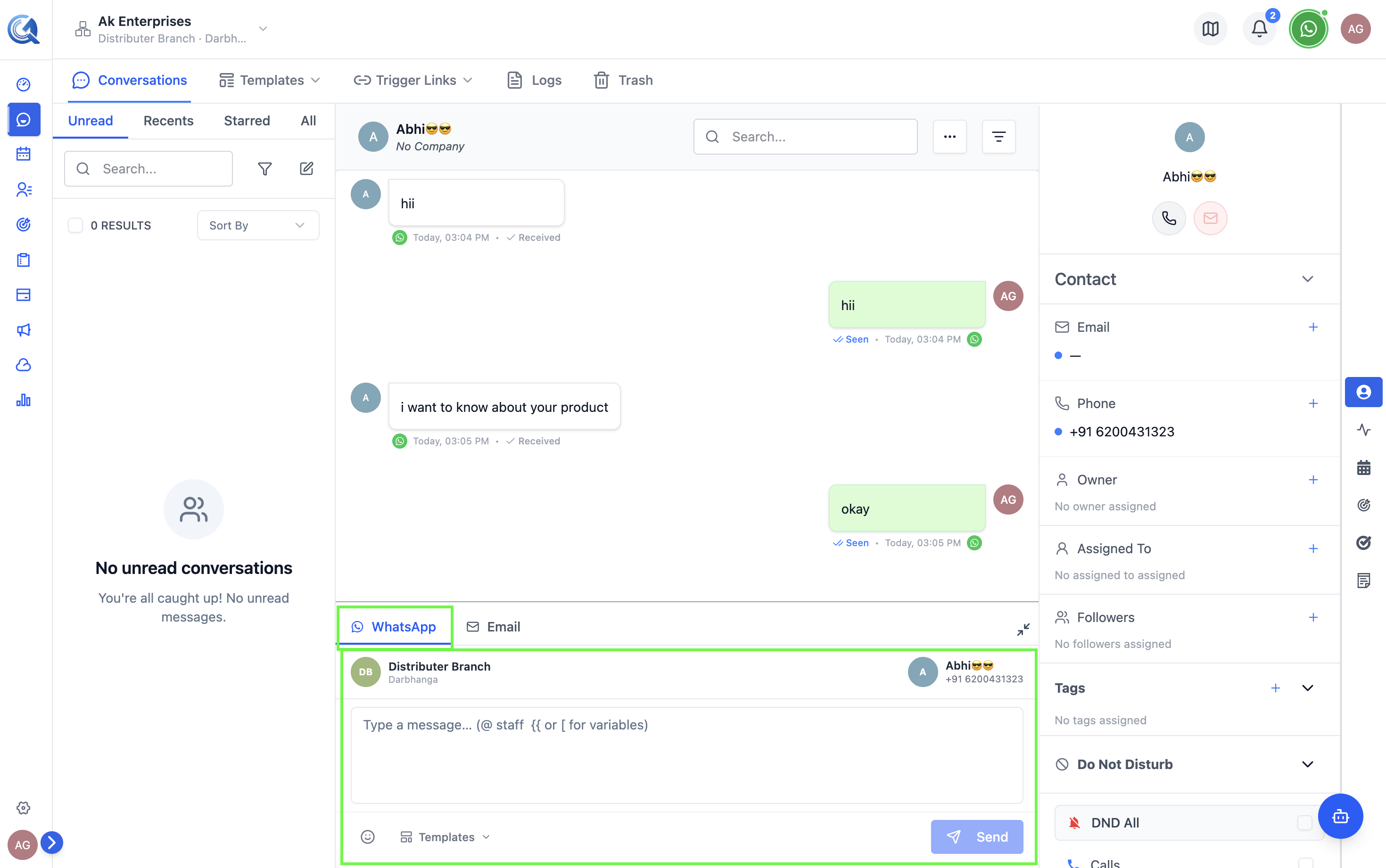 Click the WhatsApp tab to switch the composer to WhatsApp mode.
Sending the First Message (Template Required)
WhatsApp's policy mandates that every new conversation — and any conversation where the 24-hour window has expired — must start with a Meta-approved template. Free-form messages are only available after the contact replies.
WhatsApp requires an approved template for the opening message in any new conversation. The composer shows a template selector when no conversation has been initiated yet.
- Click Select Template in the composer.
- Browse or search for an approved template.
- Select the template — a preview renders on screen.
- If the template has variables (e.g.
{{1}}), fill in each value in the mapping panel. - Click Send.
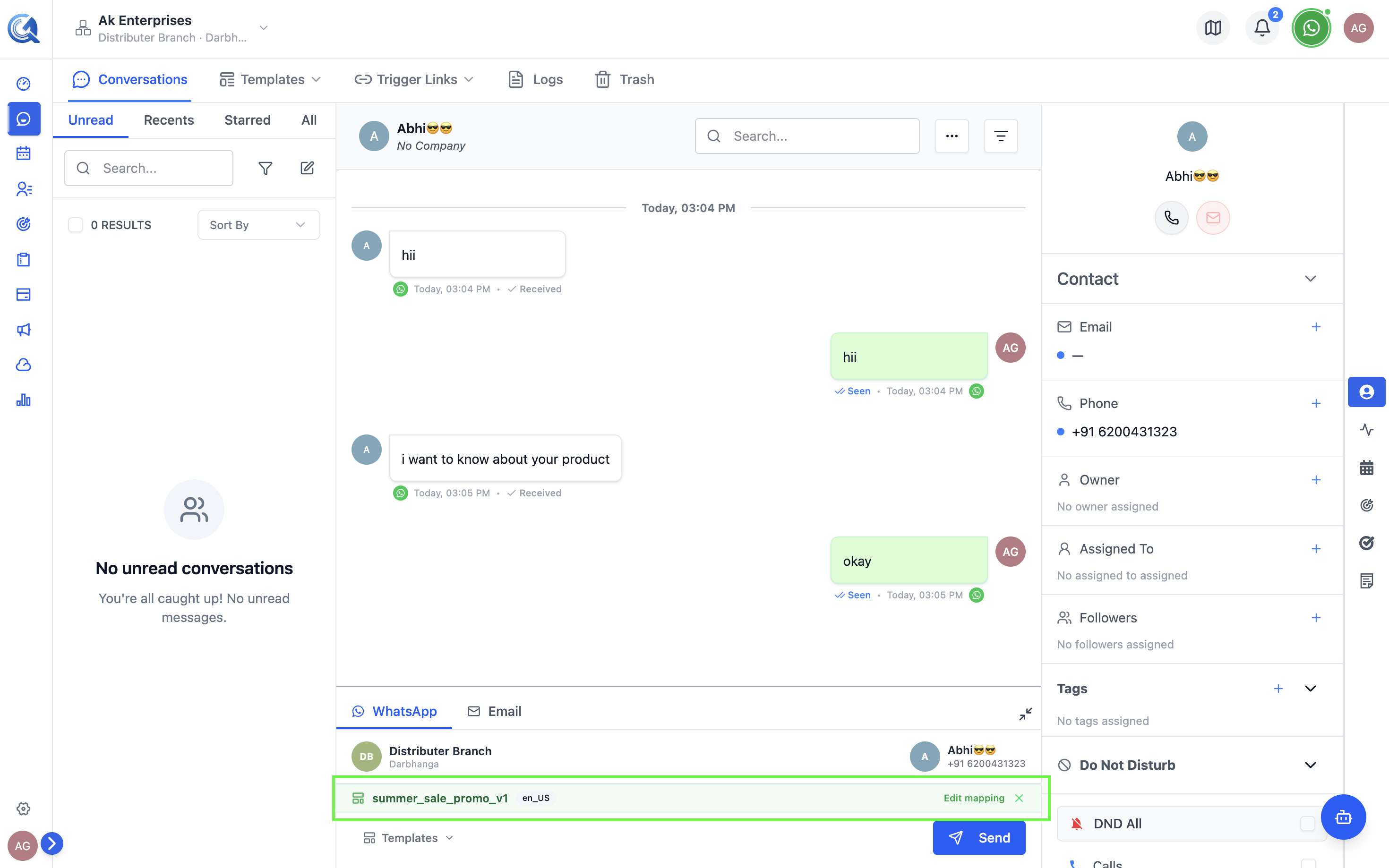 Select an approved template and map its variables before sending.
Sending Free-Form Messages (24-Hour Window)
After a contact replies to your message, a 24-hour messaging window opens. During this window, you can send free-form text and media without a template.
- Type your message in the text input area.
- Use the formatting toolbar for bold, italic, or
strikethroughif needed. - Click Send.
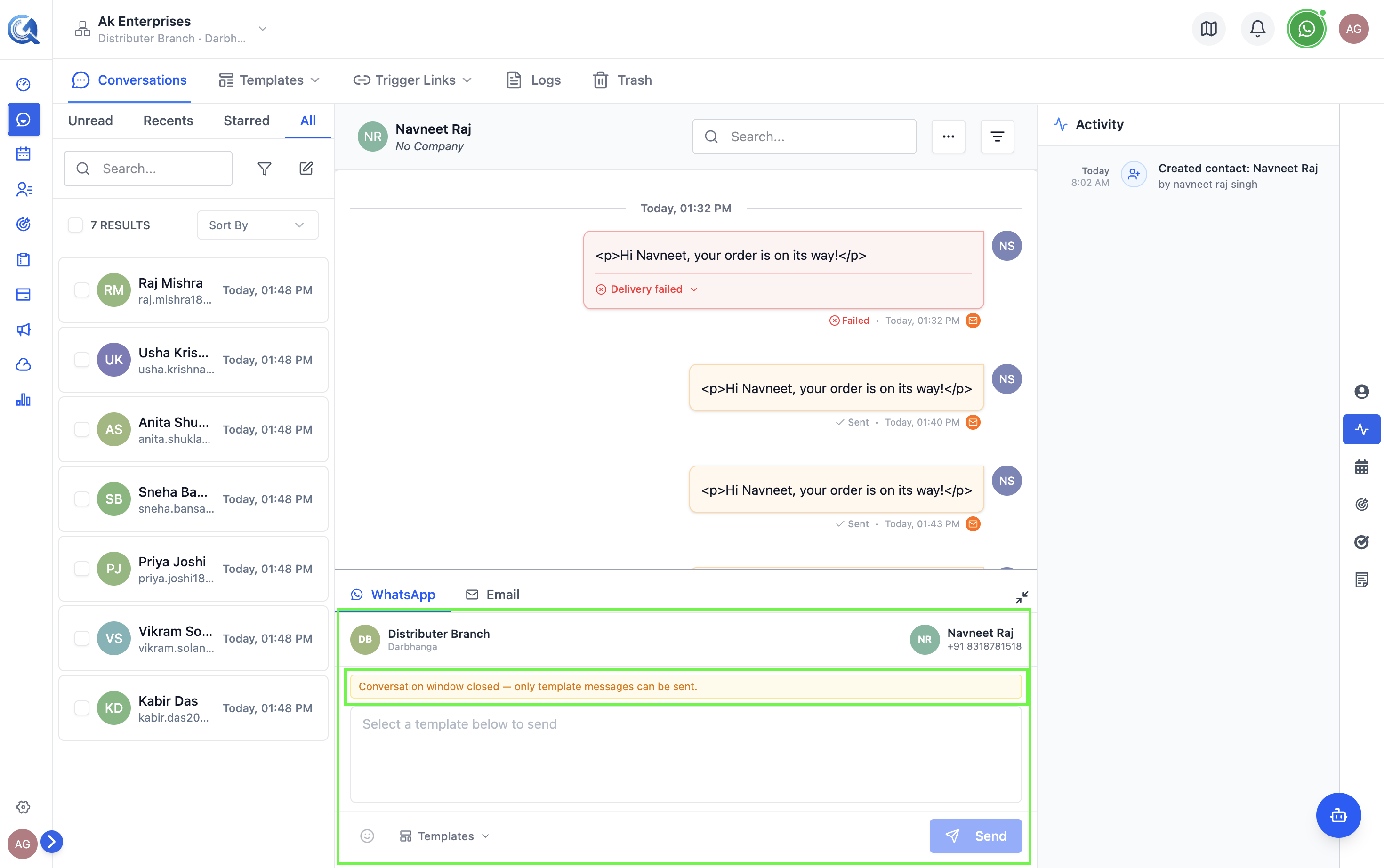 Type freely within the 24-hour window after the contact replies.
The window is counted from the contact's last reply, not from when you sent a message. If the contact goes quiet, the window will close and you'll need an approved template to reach out again.
Once the window closes, you must use a template again to re-initiate the conversation.
Note: You can edit a message shortly after sending it. Once edited, the conversation shows an "edited" label next to that message so the contact knows it changed.
Sender Information
The composer shows:
- From — Your connected WhatsApp Business phone number and display name
- To — The contact's phone number and name
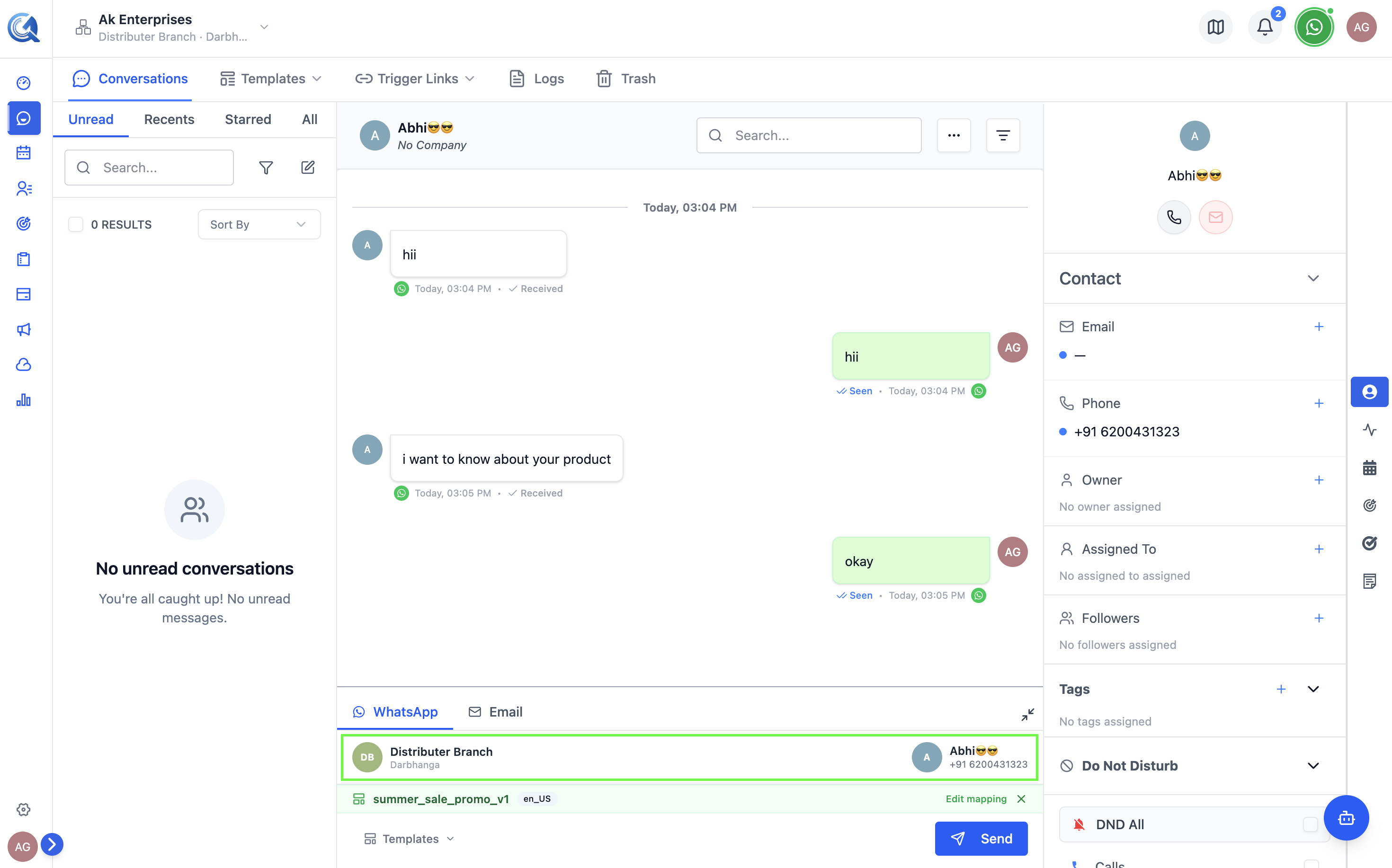 The composer shows which number is sending and which contact is receiving.
DND (Do Not Disturb)
If a contact has WhatsApp DND enabled, the composer is blocked with a warning overlay and the send button is disabled. You cannot message DND contacts via WhatsApp.
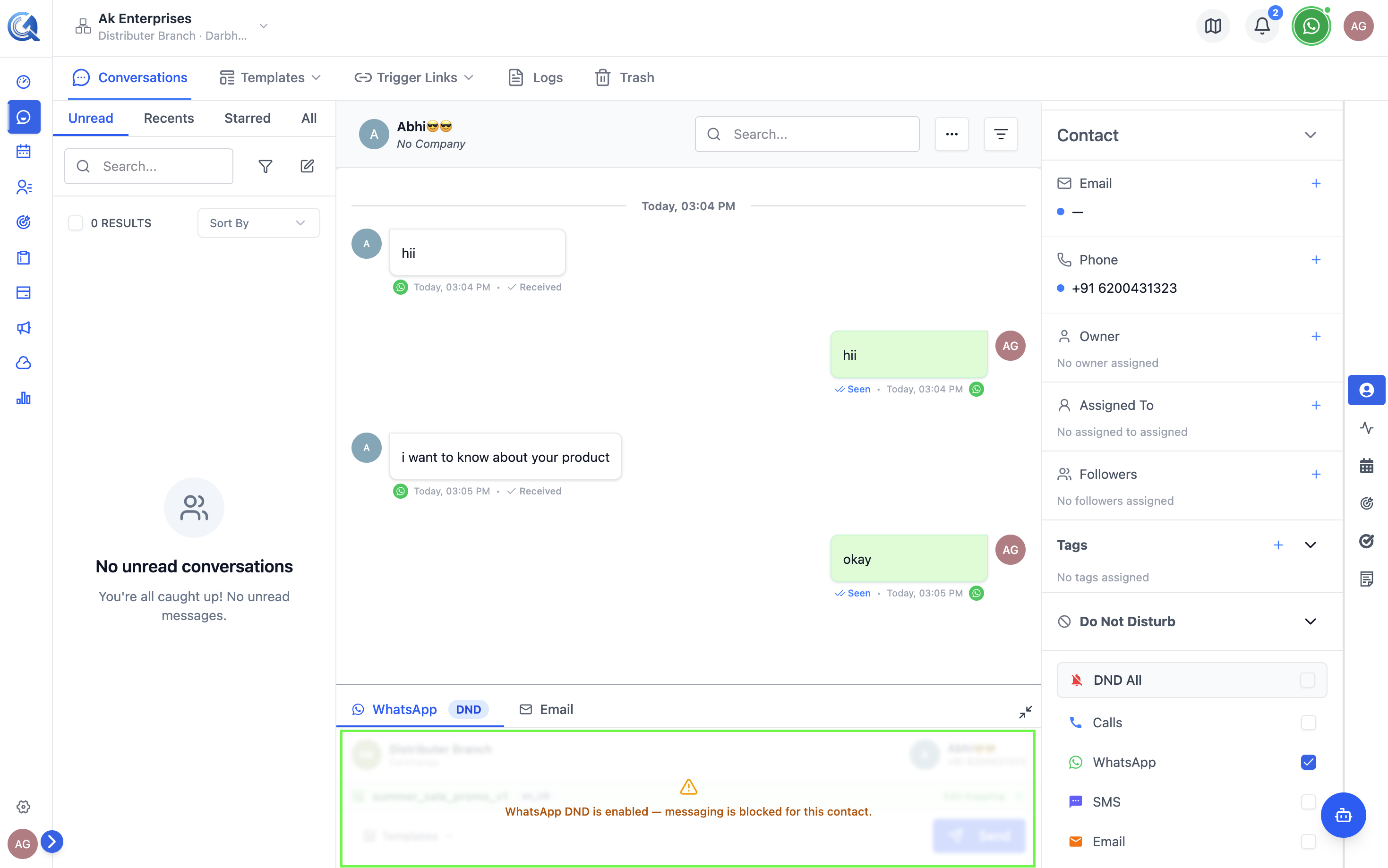 The composer is disabled when a contact has WhatsApp DND enabled.
To remove DND from a contact, go to their contact record and update the DND settings.
Video Walkthrough
Marketing Message — Live Working
Utility Message — Live Working