Using Templates
WhatsApp templates are pre-approved message formats required for the first outbound message in any conversation. When applying a template, you can personalize it by mapping its variables to contact fields or entering custom values.
Selecting a Template
In the WhatsApp composer:
- Click Select Template.
- The template picker opens with your approved templates listed.
- Use the Search bar to find a template by name.
- Click a template to preview its content.
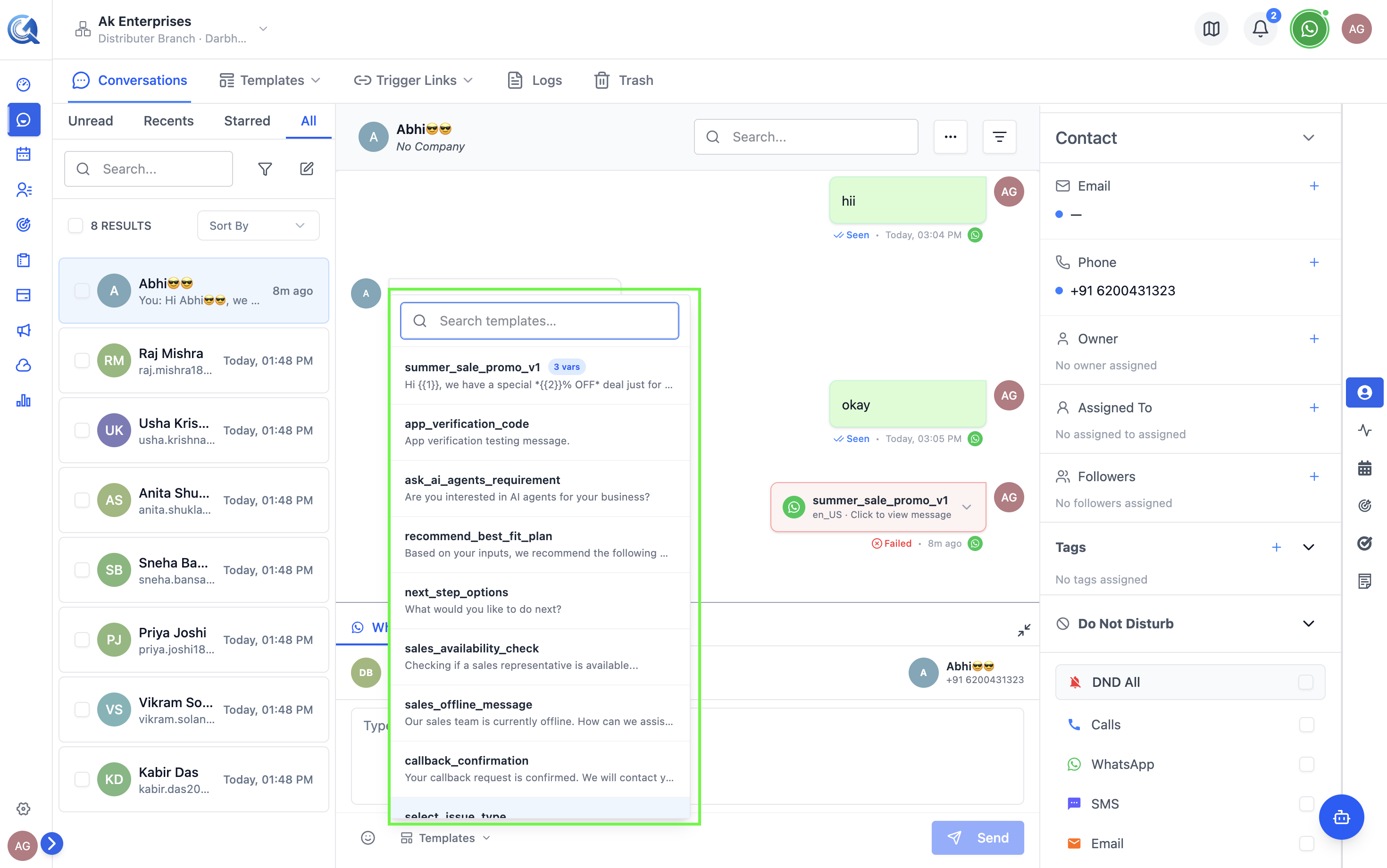 Browse and search your approved templates in the picker.
Templates with Pending, Draft, or Action Required status do not appear in the picker and cannot be sent. If you don't see a template you need, check its approval status under Conversations → Templates → WhatsApp.
Only Approved templates appear in the picker. Templates with other statuses (Pending, Draft, Action Required) cannot be sent.
Template Preview
Clicking a template shows a WhatsApp-style preview bubble with the rendered message — including the header, body, footer, and any buttons — exactly as it will appear on the contact's device.
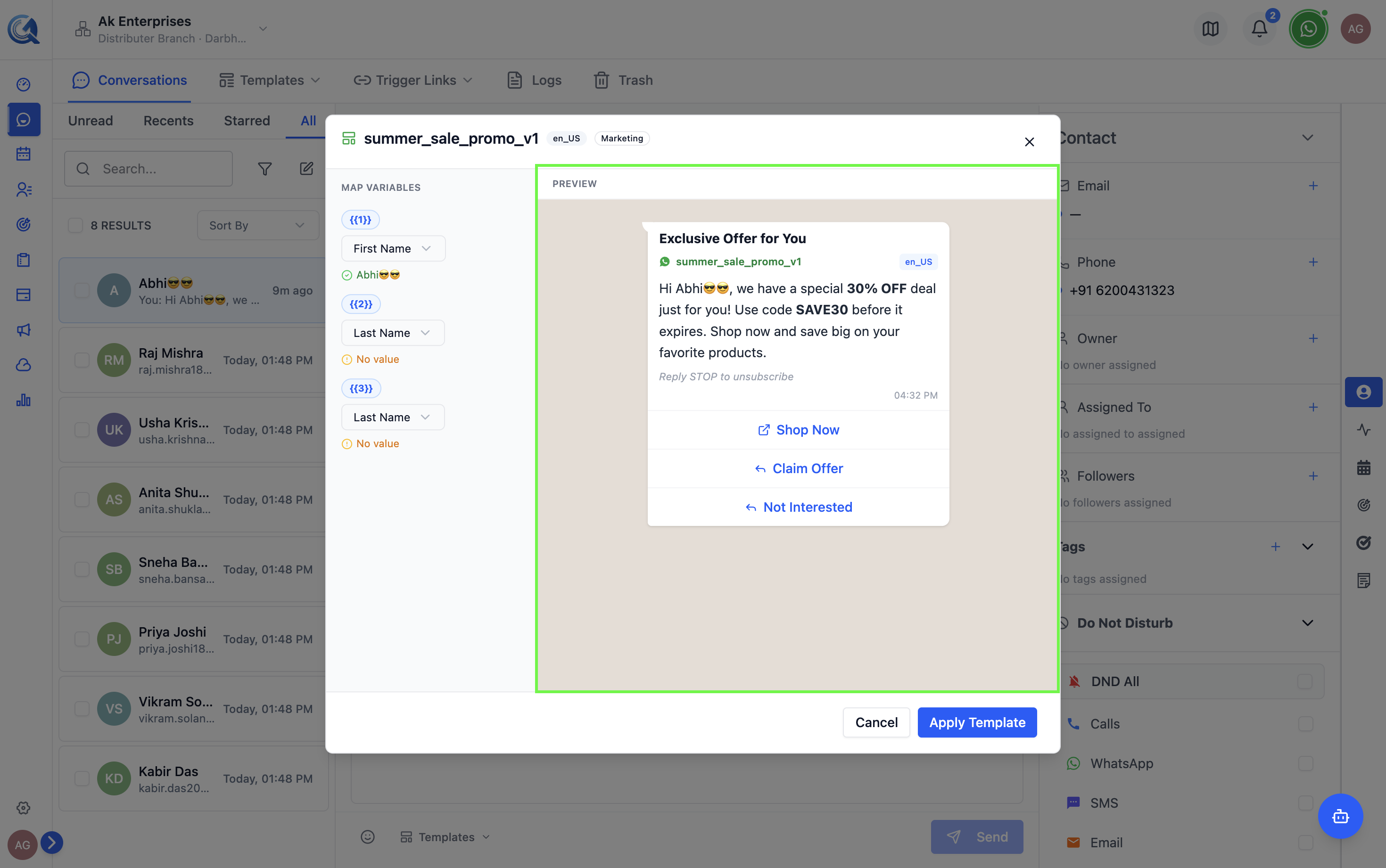 The preview renders the template exactly as the contact will see it.
Mapping Variables
If the template body or header contains numbered placeholders (e.g., {{1}}, {{2}}), a variable mapping panel appears below the preview.
For each variable:
- Select a contact field from the dropdown (First Name, Last Name, Email, Phone, Company, etc.), or
- Type a custom value directly.
QuantixOne pre-fills variables with the contact's data where possible.
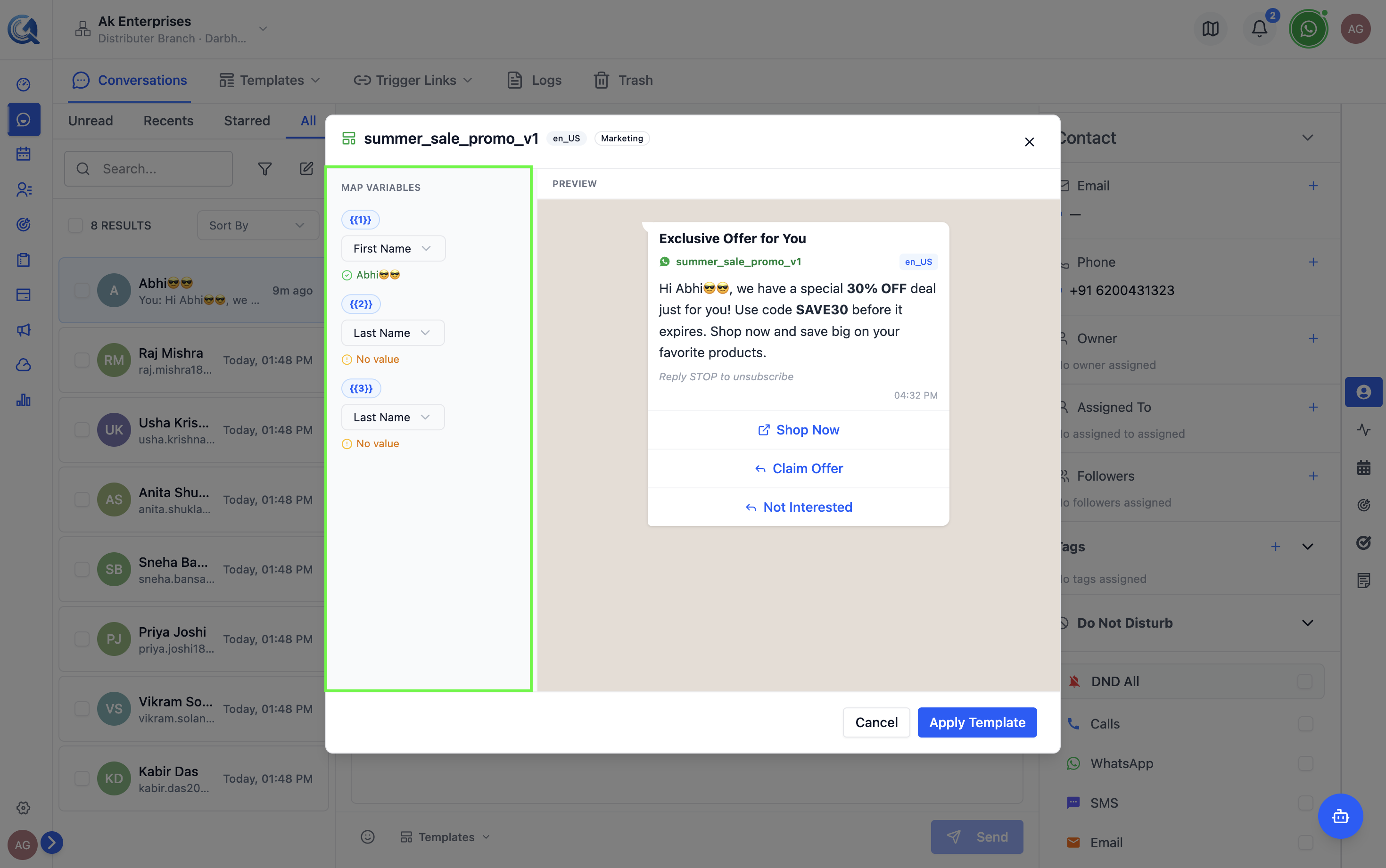 Map each placeholder to a contact field or enter a custom value.
Sending the Template
The preview updates live as you map variables. Check that every placeholder resolved correctly — a missing variable mapping sends the raw {{1}} placeholder to the contact.
Once variables are mapped:
- Review the final message in the preview.
- Click Send.
QuantixOne submits the template message to WhatsApp with the resolved variable values.
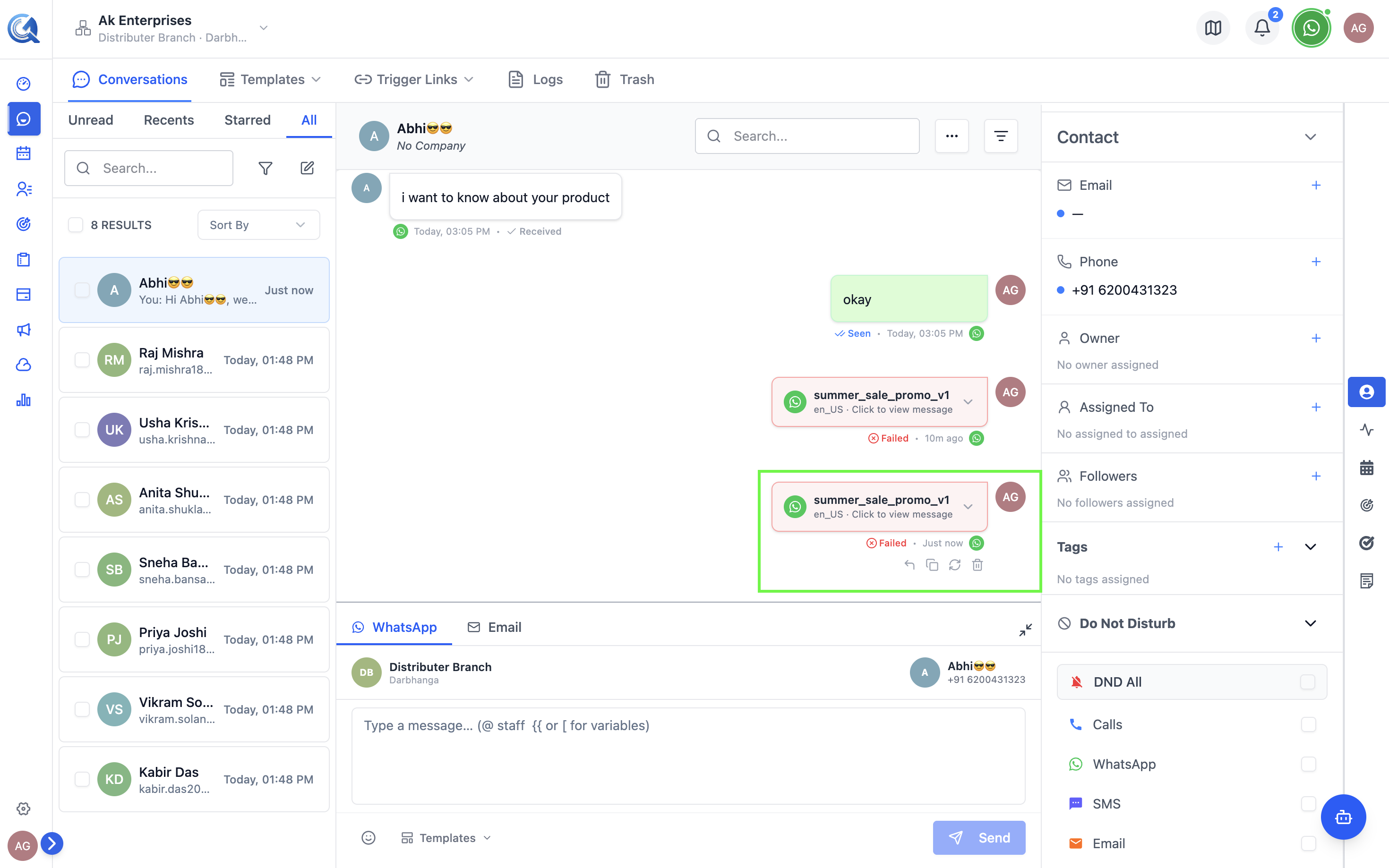 Click Send after confirming the preview looks correct.
Button Actions in Templates
Templates with buttons let contacts take actions directly from the message:
| Button Type | Contact Action |
|---|---|
| URL | Opens a website link |
| Phone | Dials a phone number |
| Quick Reply | Sends a preset reply back to your team |
Button responses from contacts appear as inbound messages in the conversation timeline.