AI Template Generator
Create using AI lets you describe the purpose of your template in a sentence and have QuantixOne pre-fill a starting draft — the template name, category, body, and buttons — for you to refine. It matches keywords in your description against a set of common message types (appointment reminders, order updates, OTP codes, promotions, and a few others), so it's a quick starting point rather than a fully custom draft — always review and adjust the result.
Starting the AI Generator
- Go to Conversations → Templates → WhatsApp.
- Click + New.
- In the dialog, choose Create using AI.
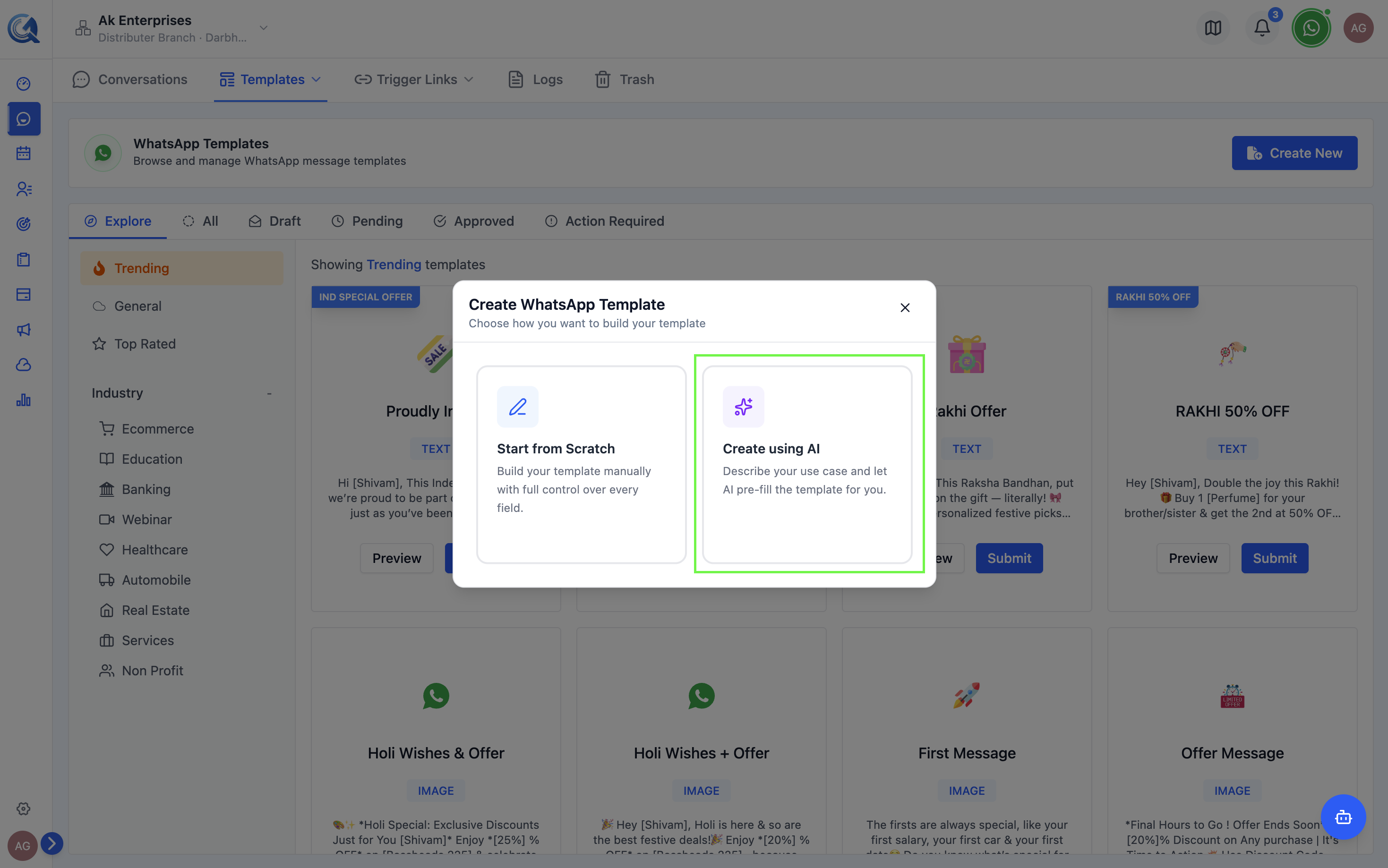 Select AI Generator to describe your use case and let AI build the template.
Describing Your Use Case
A prompt input appears with example suggestions:
- "Appointment reminder with date and time"
- "Order shipped with tracking link"
- "Payment due with amount and due date"
- "Welcome new customer with first name"
- "Promotional offer with discount code"
- "OTP verification code"
The generator looks for keywords like "appointment," "order," "OTP," "payment," "promo," or "welcome" to pick a matching message pattern — it doesn't parse tone or fine detail. Use one of the suggested example prompts, or a similarly short, keyword-rich description, and expect to edit the result afterward.
Type a short description of your use case in the prompt field.
Example prompt:
"Send a reminder to a contact about their upcoming appointment, including the date, time, and a button to confirm or reschedule."
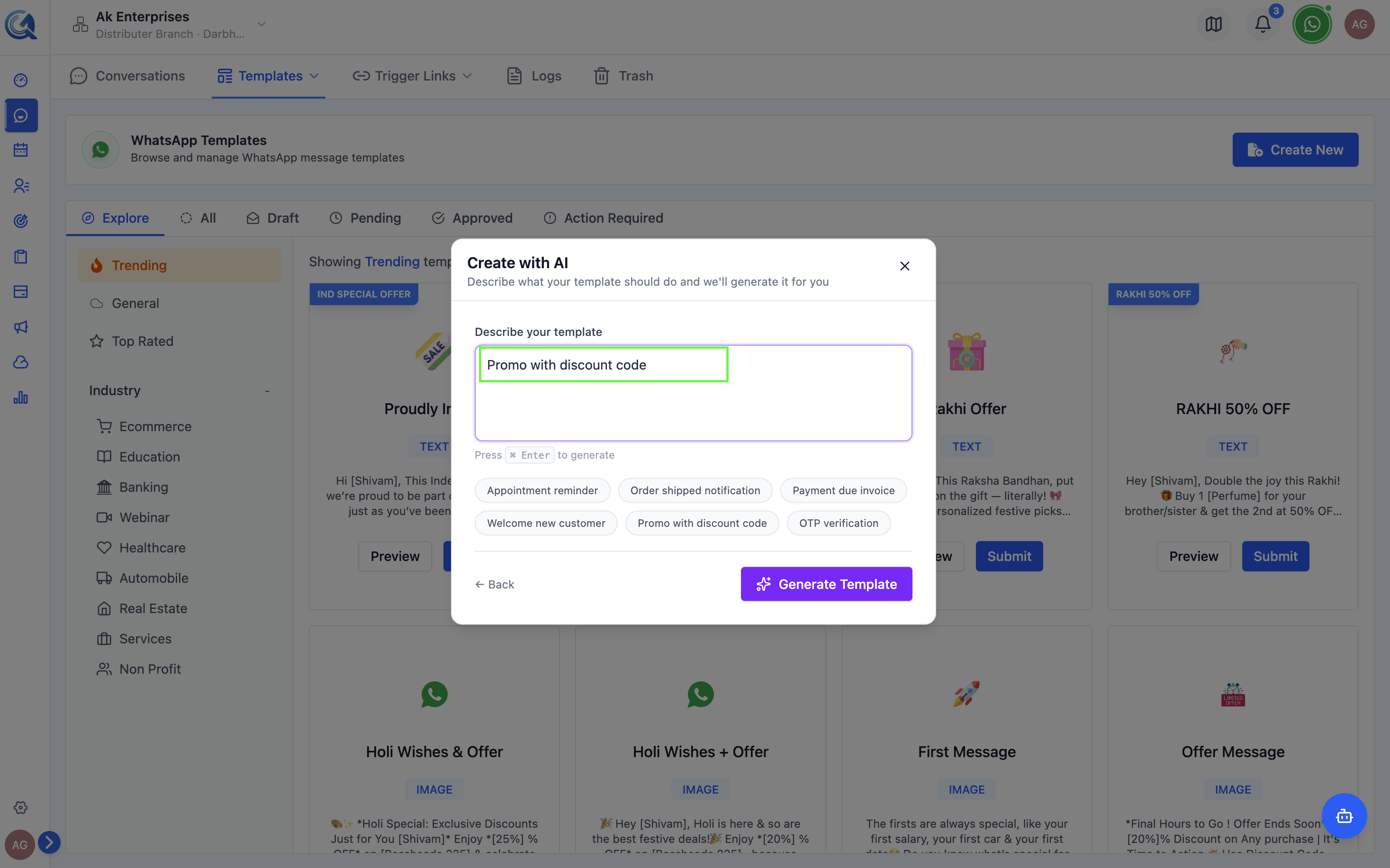 Describe the template's purpose in the prompt field.
Reviewing the Generated Template
Click Generate. It fills in:
- Template Name — A snake_case name derived from your prompt's words
- Category — UTILITY, MARKETING, or AUTHENTICATION, chosen by keyword match
- Body — A message pattern for the matched use case, with variables pre-inserted
- Example values — Sample values for each variable
The generated template opens in the template form for you to review.
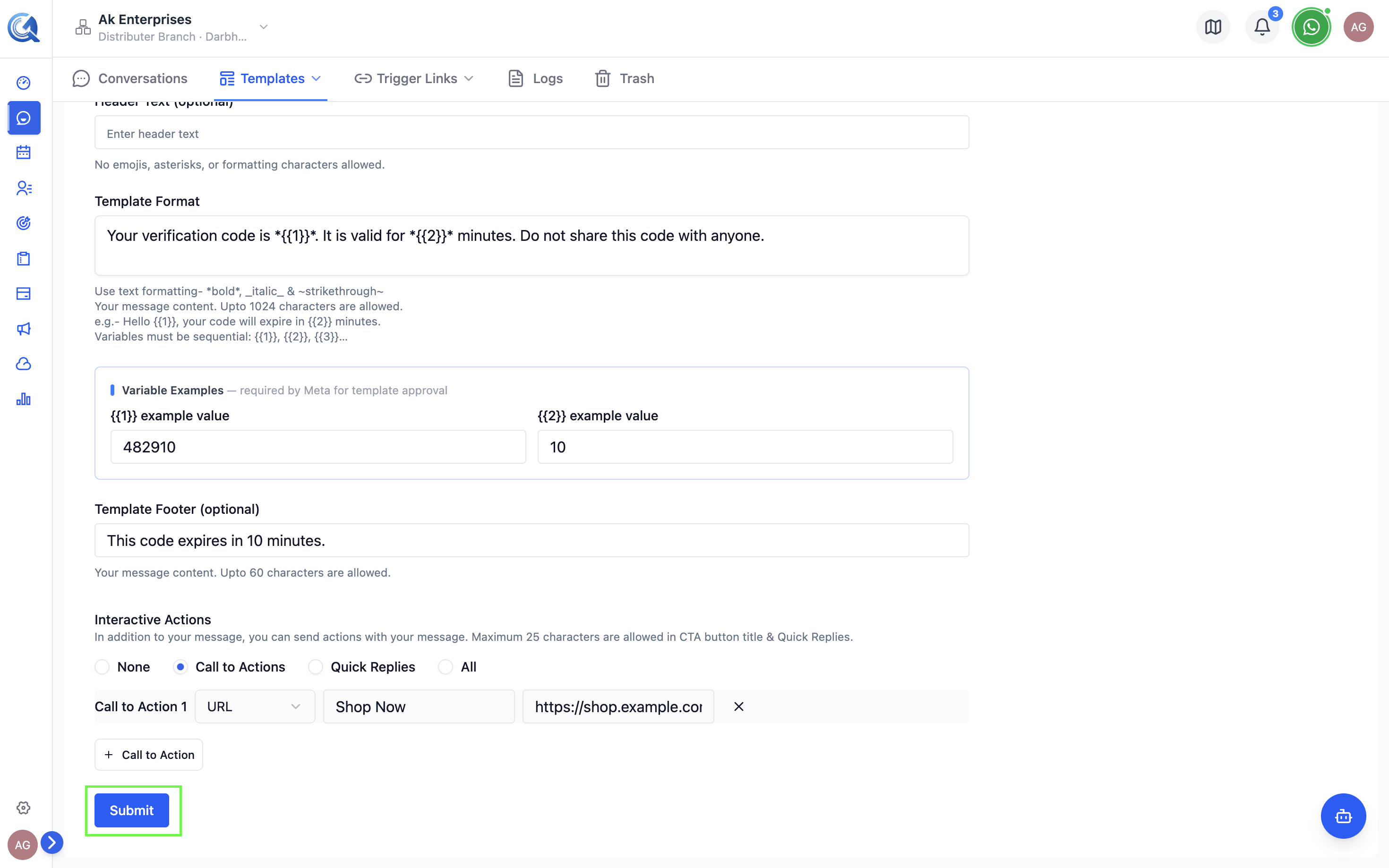 The AI pre-fills all template fields. Review and adjust as needed.
Editing the Generated Content
Always review the generated category, body wording, and variable positions before submitting. The AI may occasionally assign the wrong category or place a variable at the start/end of the body — both of which will cause rejection.
The AI output is a starting point — always review before submitting:
- Check that the category is correct for your use case.
- Adjust the body wording to match your brand voice.
- Verify that variables are in the right positions and sequential.
- Add, edit, or remove buttons as needed.
- Add example values for all variables.
Submitting for Approval
Once satisfied with the template:
- Click Submit for Approval.
- The status changes to Pending while Meta reviews it.