Templates Overview
WhatsApp Message Templates are pre-approved message formats that allow businesses to initiate conversations with contacts. Because WhatsApp requires approval from Meta before a template can be used, you create and submit templates in advance and they become available for sending once approved.
Why Templates Are Required
WhatsApp's policy requires that all outbound messages that start a new conversation — or re-open one after the 24-hour window expires — must use a Meta-approved template. This protects users from spam and ensures businesses send relevant, expected messages.
Template Statuses
| Status | Meaning |
|---|---|
| Draft | Created but not yet submitted to Meta for review |
| Pending | Submitted to Meta and awaiting approval |
| Approved | Live — can be used in conversations and bulk messaging |
| Action Required | Rejected by Meta — requires edits before resubmission |
Most templates are reviewed by Meta's automated system within minutes. Complex or borderline templates may take longer. Plan ahead — don't create templates the same day you need to send.
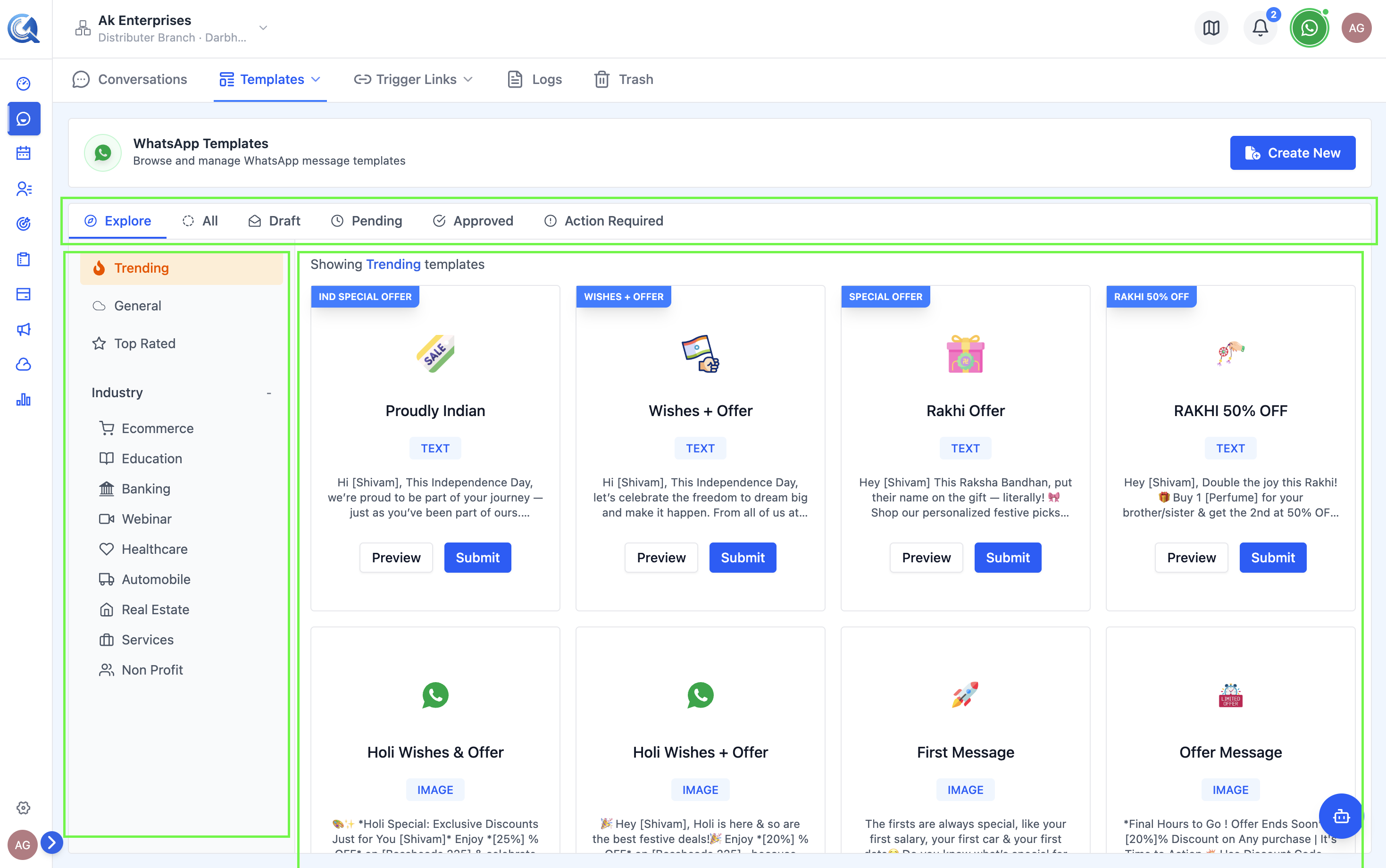 The template list is organized by status tabs.
Template Categories
Every template must be assigned one of three categories:
| Category | Use Case |
|---|---|
| Utility | Transactional messages — order updates, appointment reminders, account alerts |
| Marketing | Promotional messages — offers, announcements, product promotions |
| Authentication | OTP and verification codes |
Submitting a promotional offer as Utility or a transactional alert as Marketing will trigger an Action Required status. Read Meta's category definitions carefully before submitting — you cannot change the category after submission without deleting and recreating the template.
Meta uses the category to determine approval criteria. Mismatched categories (e.g., a promotional message submitted as Utility) are a common rejection reason.
Template Structure
A template consists of up to four components:
| Component | Required? | Description |
|---|---|---|
| Header | Optional | Text, image, video, document, or location shown at the top |
| Body | Required | Main message text with optional variables {{1}} {{2}} |
| Footer | Optional | Short disclaimer or contextual text at the bottom |
| Buttons | Optional | Up to 10 quick replies, 2 URL buttons, and 1 phone button |
See Template Components for a full breakdown.
Navigating to Templates
- Click Conversations in the left sidebar.
- Click Templates in the sub-navigation.
- Select the WhatsApp tab.
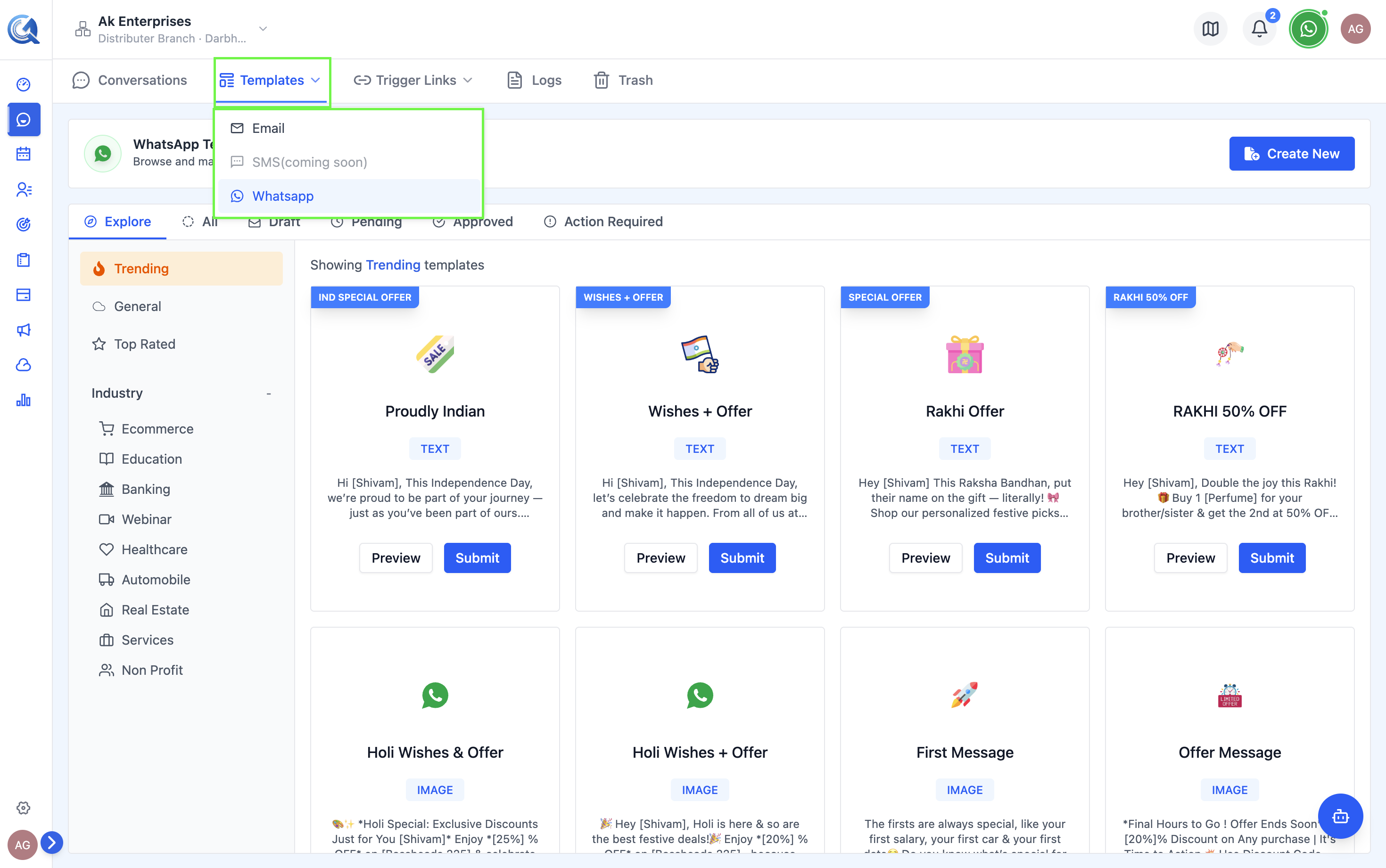 The WhatsApp tab shows all your WhatsApp templates.